How to create custom labels in Word (and the alternative)
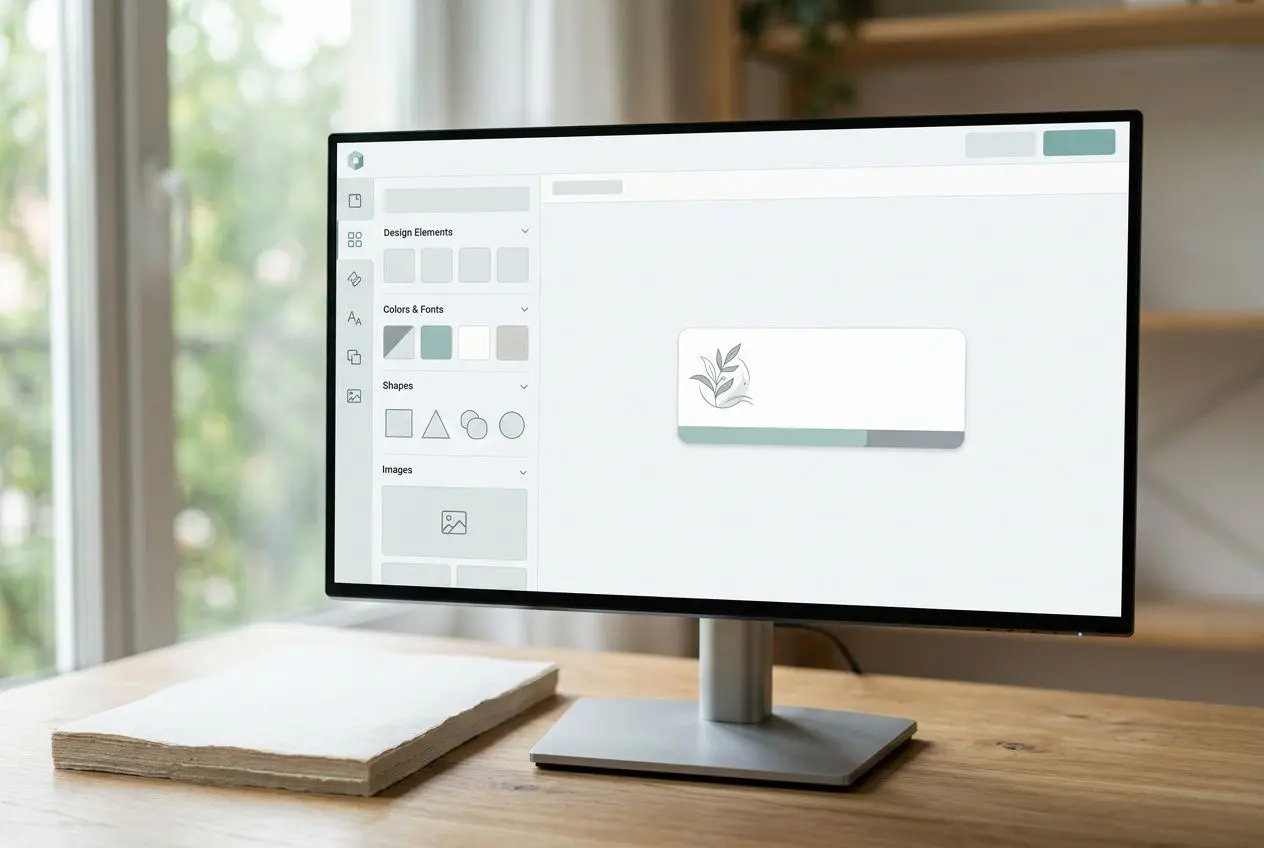
This guide compares the traditional method of creating custom labels in Word with the Custengine online editor. Faster and more flexible, this solution remains accessible without any technical skills. For create a label online, simply open the Custengine editor and follow the three steps shown below.
Create a label without Word’s limitations
However, this method requires manual setup, rigid templates, and limited graphic customization.
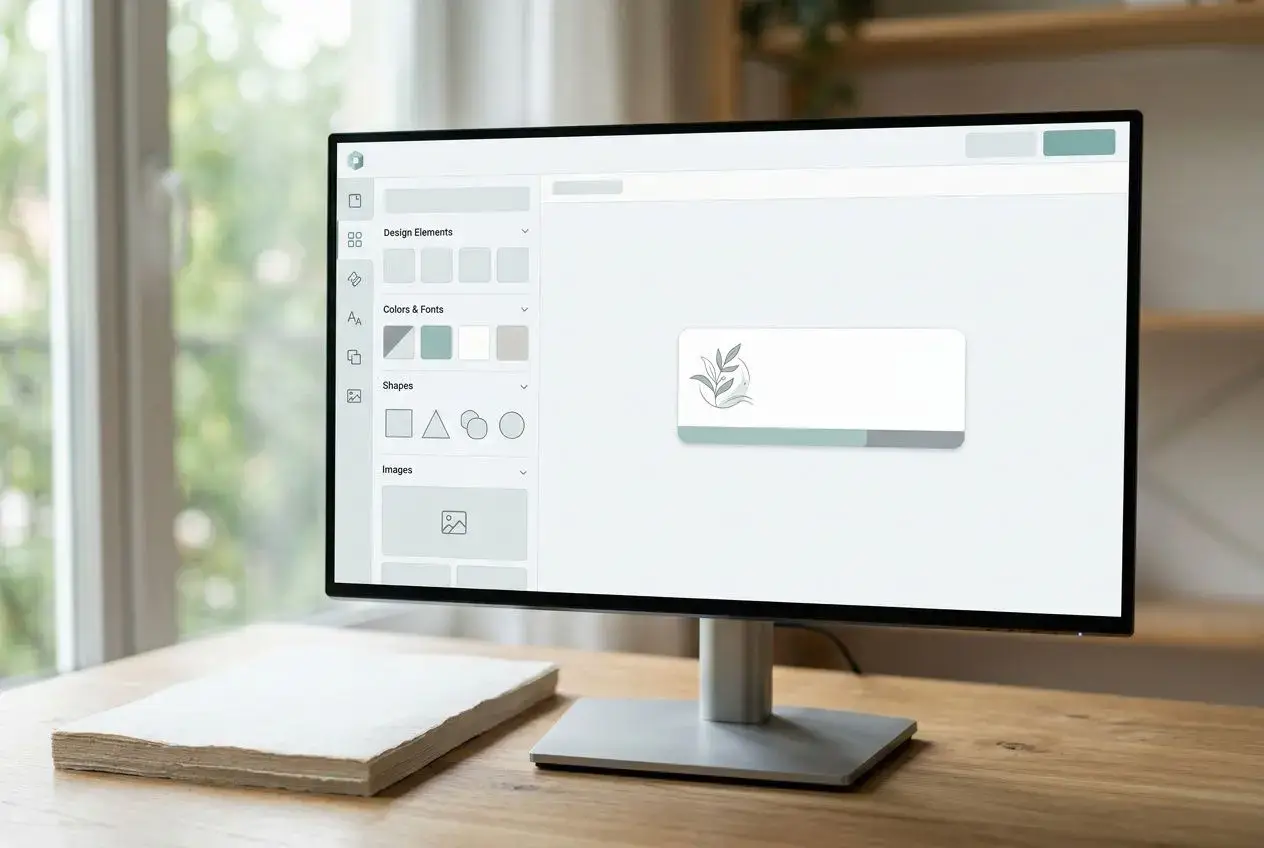
Accessible from a browser on app.votre-etiquette.com, Custengine makes creation easy. Create a unique label in just a few minutes, with no installation or mail merge knowledge required.
The Word process and its constraints
Creating labels in Microsoft Word requires opening the Mailings tab, entering the exact product number for the label sheet, then choosing the printer type. Each step slows down the process, especially when you are unfamiliar with it.
To obtain identical labels on a full page, Word creates a new document containing a structured table. Easy to understand. However, the precise settings have to be redone for each new sheet, which makes the process more cumbersome.
- Supplier reference required Word asks you to select a supplier and a product number corresponding to the physical sheet of labels. Without this reference, the layout may be incorrect.
- Unique label difficult to position To place a single label, you must manually specify its row and column on the label sheet.
- Word for the web even more limited An online Word document does not allow you to start creating labels directly. You need to start with an existing template and duplicate the content cell by cell.
Why does the Word template remain rigid?
In contrast, Custengine automatically manages the dimensions.
Customize a label with Custengine
Custengine offers three steps: choose the format and dimensions suited to the medium, set the background using the colour picker, then personalise the content with text, images, frames and ornaments. Light pastel colours promote readable contrast. A 3 mm safety margin around the edges reduces the risk of trimming during printing.
The integrated AI assistant describes a project in just a few words. It then generates a custom label. To discover AI-assisted creation of personalized labels.
Print easily from an HD PDF
Download the HD PDF file for €5.
One technical guideline: a minimum of 150 DPI for images at their final size.
- Complete autonomyCreate, download and print from the comfort of your home, with no external service provider required.
- Affordable price Saving the project only requires a free account.
- Print run flexibility Print a single label or a complete series to suit your needs, without the waste associated with pre-filled Word sheets.
For a premium finish, Votre Étiquette also offers stickers made from European adhesive material, with express delivery within 48 hours. The difference lies in the option you choose: a PDF to print at home for a quick, cost-effective solution, or finished labels for a professional result from the very first copy.
| Criteria | Word | Custengine |
| Installation required | Yes (office software) | No (browser only) |
| Product number to enter | Yes, required | No, dimensions managed automatically |
| Graphic customization | Limited (text, basic shapes) | Complete (colours, images, AI) |
| Real-time preview | Partial | Immediate |
| Available label type | Standard sheets only | All formats and all materials |
| Price for printing at home | Free (but restrictive) | €5 in HD PDF |
| Required skills | Mail merge, layout | None |
Creating labels in Word: answers to frequently asked questions
Creating a label in Word is still possible for simple needs, provided you choose the right template and layout. For a custom creation, Votre Étiquette offers a more straightforward solution, with desktop publishing support and print-ready files.